
Transferring Files with RONIN LINK
RONIN LINK can help you transfer files between your computer and your virtual machine over the same secure SSH login RONIN LINK already uses!

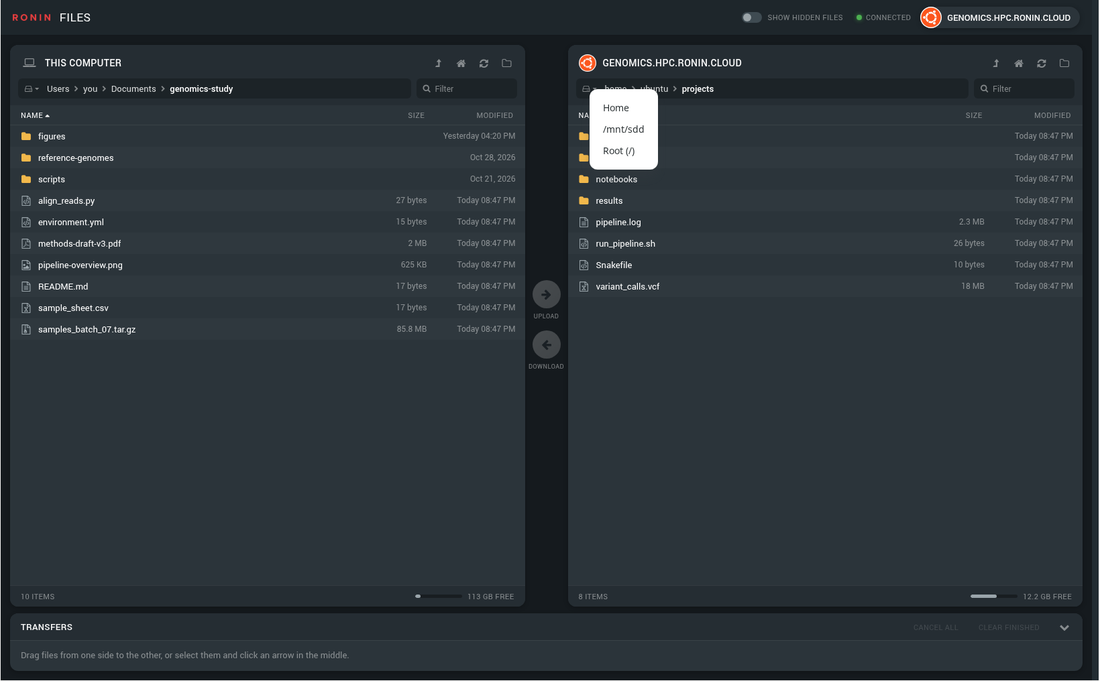
RONIN LINK 4 lets you transfer files between your computer and your RONIN machine by dragging them across. It uses the SSH login RONIN LINK already has for your machine, so there's nothing to install or set up.
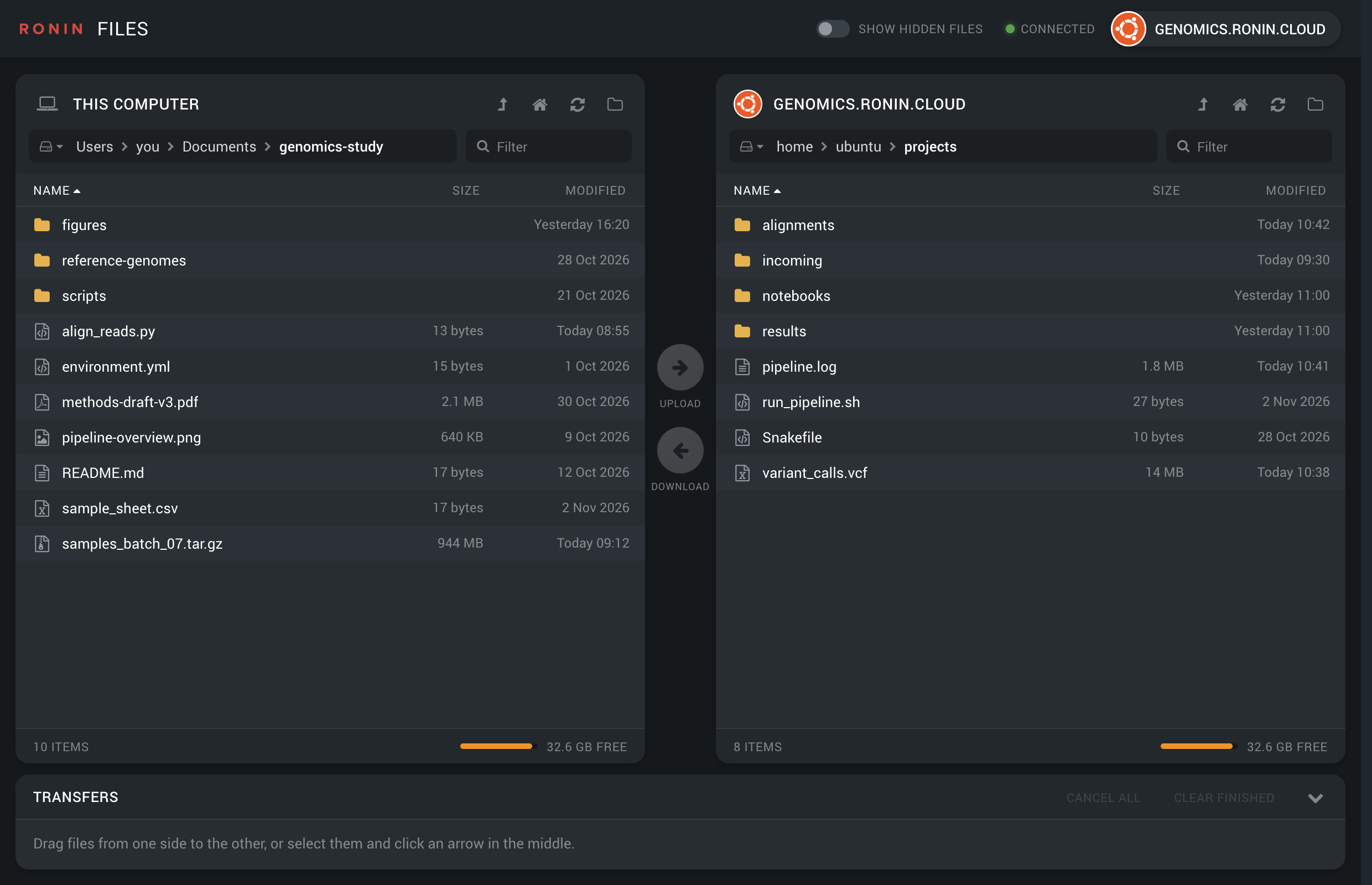
Open the transfer files modal
- Click CONNECT TO MACHINE on your machine's card in RONIN LINK.
- Click FILES.
Your computer is on the left and your machine is on the right. Files works with Linux machines. For a Windows machine, use DESKTOP instead.
Transfer files
- Drag files or folders to the other side. Drop them on a folder to put them inside it.
- Select them and click the arrow in the middle: UPLOAD sends them to your machine and DOWNLOAD brings them to your computer.
- Double-click a file to send it to the folder open on the other side.
- Drag from Finder or Explorer straight onto your machine's side.
Folders are sent with everything in them. Up to three files transfer at once.
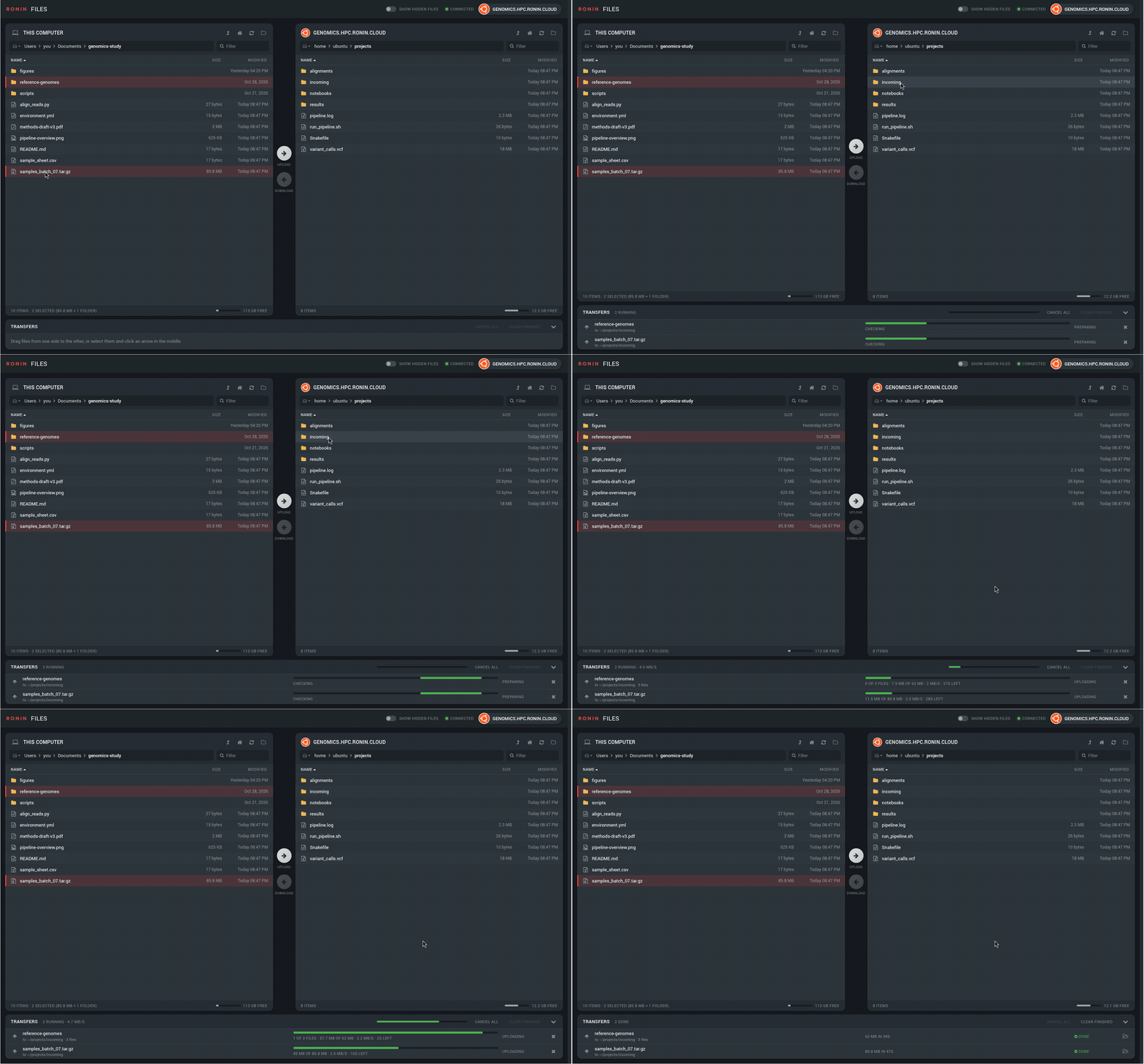
Each transfer gets a row at the bottom showing its progress, speed and time left. Click × to cancel it. A failed or cancelled transfer has a retry button, and a finished one has a folder button that shows the files where they landed.
Files that are already there
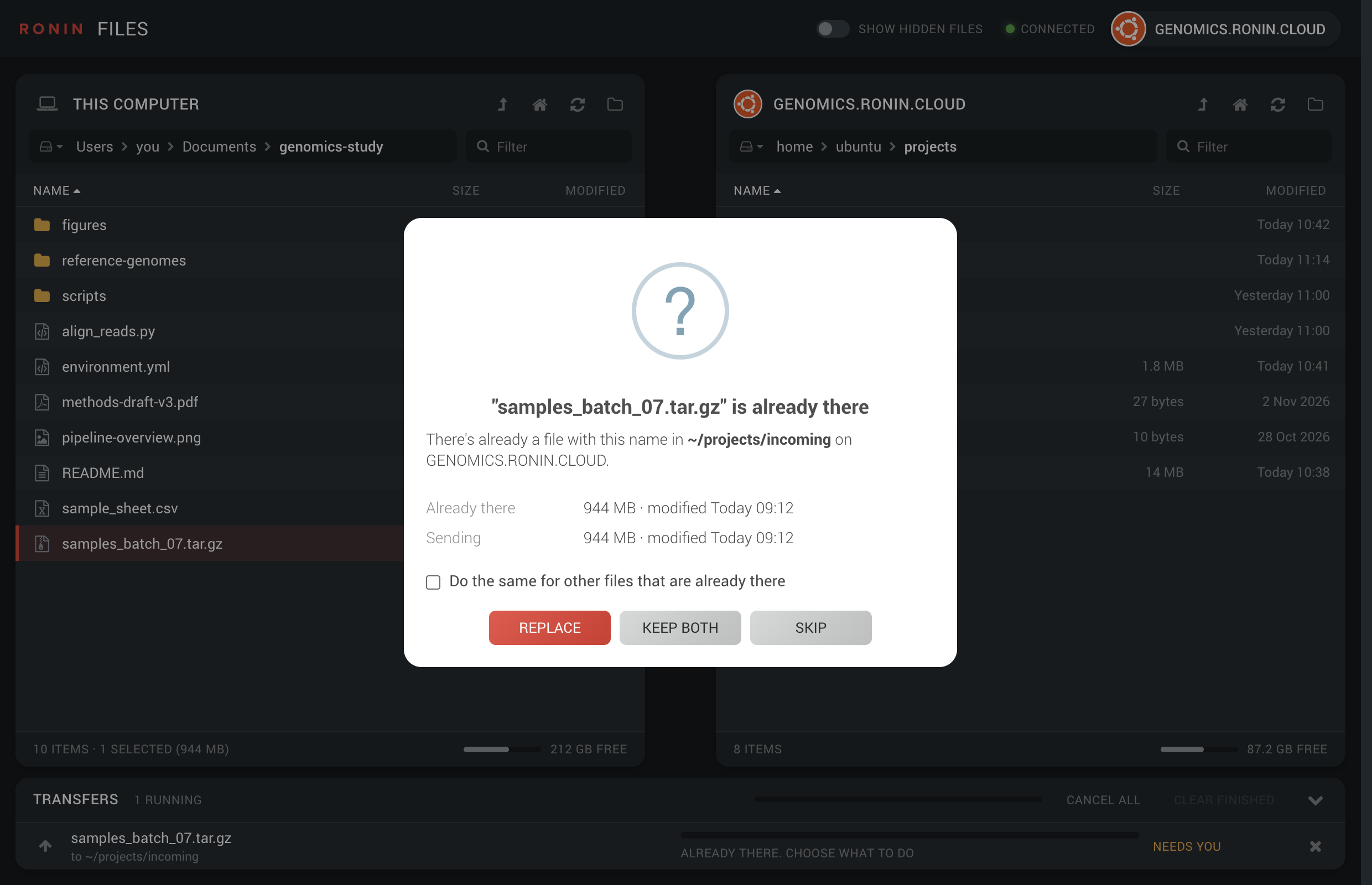
Nothing is overwritten without asking. If a file with the same name is already there, choose:
- Replace to swap in the file you're sending.
- Keep both to save yours with a number, e.g.
results-1.csv. - Skip to leave the one that's there.
Tick Do the same for other files that are already there to answer once for a whole folder.
Navigate around
- The path bar: click a folder in the path to go back to it. Click the empty part of the bar to type a path, or
~for your home folder. - The drive icon at the start of the path bar jumps to your home folder and other common places. On your machine, that includes any drives you've set up with MOUNT DRIVES.
- Filter shows only the names that match what you type.
- Show hidden files shows names that start with a dot, such as
.bashrc. - Right-click to rename, make a new folder, copy a path or delete. Files you delete on your computer go to the Trash or Recycle Bin. Files you delete on your machine are gone for good, so RONIN LINK checks with you first.
Keyboard shortcuts:
| To | Press |
|---|---|
| Move through the list | Arrow keys (add Shift to select as you go) |
| Open a folder, or send the selected files | Enter |
| Go up a folder | Backspace (delete on a Mac) |
| Select everything | Ctrl+A (Cmd+A on a Mac) |
| Rename | F2 |
| Delete | Delete (Cmd+delete on a Mac) |
| Jump to a name | Start typing it |
What you can and can't do
- Any size, any number: send single files or whole folders. Files keep their modified time, and scripts stay executable.
- Only where you're allowed: Files works as your machine's user, the same as the terminal, and can't use
sudo. You can't write to system folders such as/etcor/opt, or to other users' folders. Use your home folder or a drive you've mounted. If a file really needs to go somewhere else, upload it to your home folder and move it withsudoin the TERMINAL. - Links: a linked folder inside a folder you're sending isn't copied, so a link can't pull in files from somewhere else. Linked files are copied as normal files, and a link you select yourself is followed.
- Windows names: Windows can't store some names that Linux allows. When you download to a Windows computer, characters like
:?and*become_, socolon:name.txtarrives ascolon_name.txt. - Downloaded files: your computer treats files you download as downloaded from the internet, just like a browser download. On Windows, Office opens them in Protected View, so click Enable Editing to change them.
- Not resumable: a file that stopped partway starts again from the beginning. Retrying a folder skips the files that already arrived, so it carries on where it left off.
- No dragging out: you can't drag files out of Files into Finder or Explorer. Download them, then use the folder button on the finished transfer to find them.
Keeping your files safe
- Files travels over the same encrypted SSH connection as the terminal. It doesn't open any new ports on your machine, and your key or password never leaves RONIN LINK.
- Files are written under a temporary name,
<name>.ronin-part, and only get their real name once they've fully arrived. A cancelled or failed transfer removes its partial file, so you'll never mistake a half-copied file for a whole one. - On a RONIN Isolate desktop, Files works the same way, and downloads land in the Isolate desktop's folders.
If something goes wrong
Permission denied: you don't have permission to write to that folder. Send it to your home folder or a mounted drive instead.

Not enough space: RONIN LINK checks there's room before it starts. The free space for each side is at the bottom of its list. Choose a folder on another drive, or make space first.
The connection was lost: if your machine stops or your internet drops, a red banner appears. Click RECONNECT once the machine is back, then click retry on the transfers that stopped. Any partial uploads they left behind are removed when you reconnect.

It's slow: the speed depends mostly on your internet connection. Lots of small files take longer than one big one, so zipping a folder of thousands of files first helps. To do that, run tar czf results.tar.gz results in the TERMINAL.
Closing the window: if transfers are still running, RONIN LINK asks before it closes. Closing stops them and removes any half-finished files.
Still stuck? Click the warning triangle at the top of RONIN LINK's main window to open its error log. Then send us a support request with the log attached.