
Deploying Veyon as a Classroom Manager on RONIN
Deploy Veyon for cloud-based classrooms on RONIN with DCV. Learn how to configure teacher and student machines and scale your lab with RONIN packages.

Veyon (short for Virtual Eye On Networks) is an open-source classroom management tool that lets you:
- See all student screens at once
- Remotely control machines
- Broadcast your own screen
- Lock keyboards and mice (when things get chaotic)
- Send files and messages
And the best part? It works beautifully in RONIN cloud lab environments!
In this guide, we’ll walk through how to install and configure Veyon for a teacher and student setup in RONIN.
Setting up Veyon
Prerequisites
In a single RONIN project, create:
- A Windows machine with DCV installed (via RONIN LINK) that will act as the "Teacher" machine
- A Windows Machine with DCV installed (via RONIN LINK) that will act as the "Student" machine
Setting up the Teacher Machine
- Connect to the Desktop with RONIN LINK
- Navigate to the browser and download Veyon
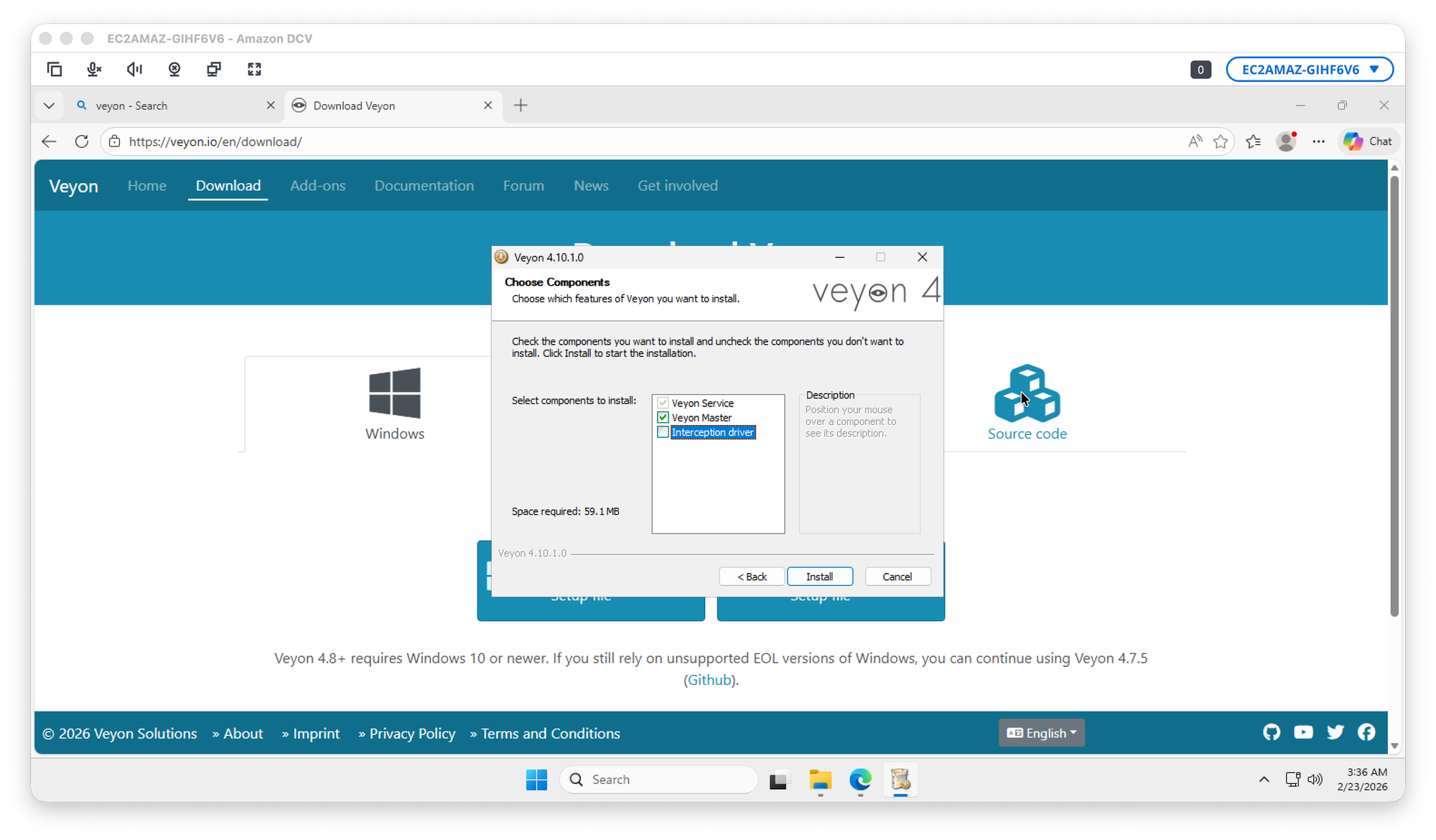
- Open the Veyon Installer and ensure the Veyon Master component is selected for install and deselect the Interception Driver (it is not recommended for remote desktop environments).
- Run the Veyon Configurator at the end of the installation
- Generate authentication keys by clicking on Authentication keys > Create Key Pair. Name the key pair something easy to remember like "Classroom" or the name of your particular class or group of students that you will be monitoring. This creates:
- Private key (For Teacher Machine)
- Public key (For Student Machines)
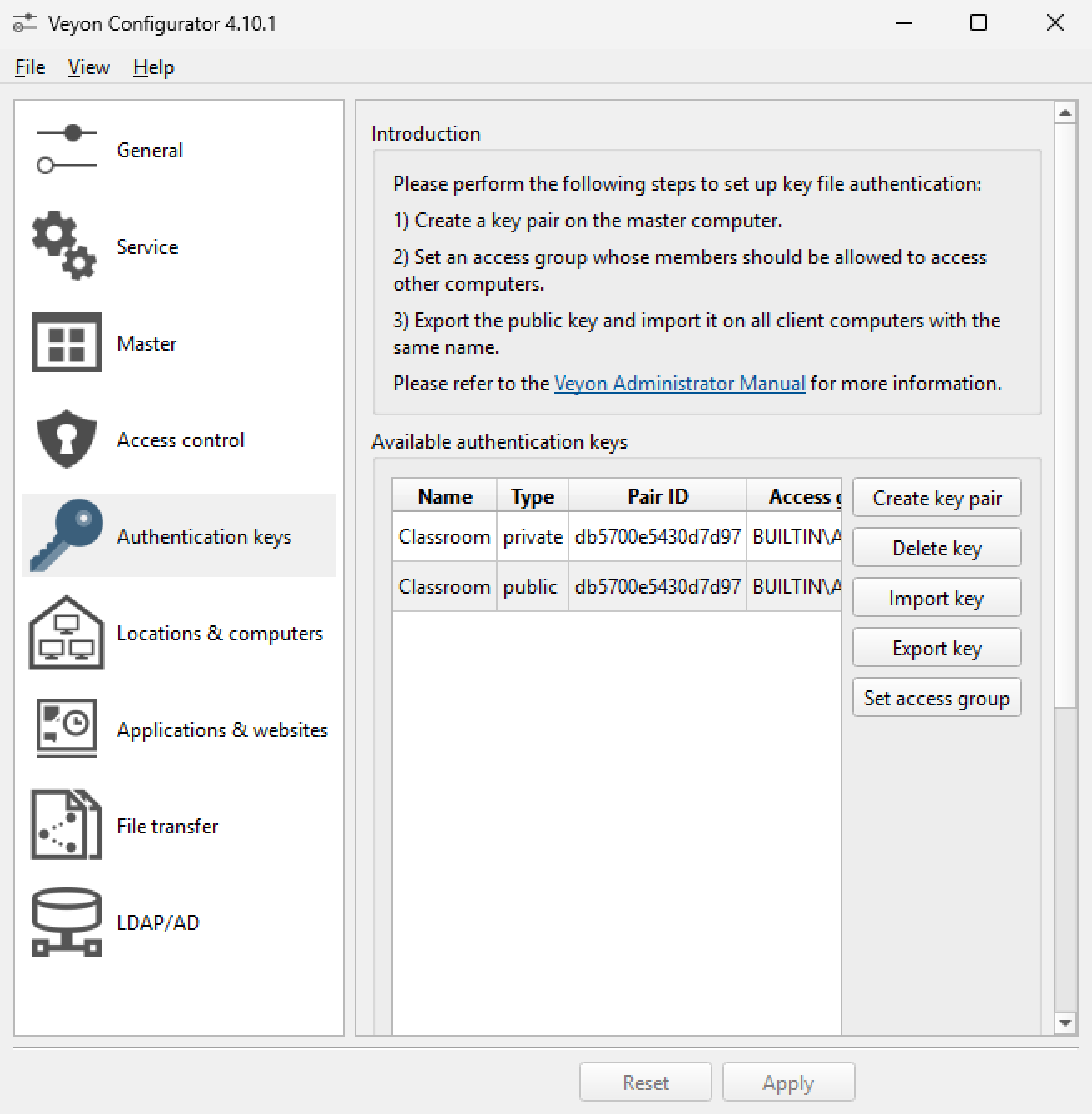
- Select the public key and click "Export key" and save it somewhere you can easily find again as you will be importing this key on the student machines in the next section.
- In the Veyon Configurator, click on General and under "Authentication" make sure "Key File Authentication" is selected:

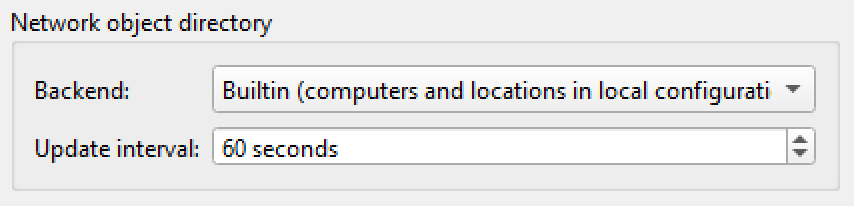
- Then, ensure "Network object directory" is set to "Builtin":
- Now click on Service and make sure the Session Mode is set to "Active Session Mode":
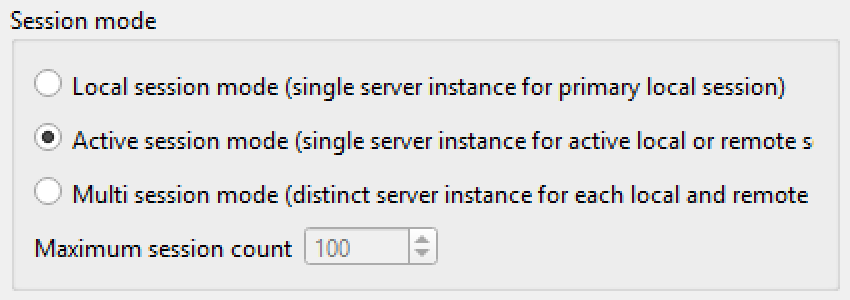
C:\VeyonDrop- Click Apply at the bottom of the window and allow Veyon to restart
Setting up the Student Machine
- Connect to the Desktop with RONIN LINK
- Navigate to the browser and download Veyon
- Open the Veyon Installer and ensure only the Veyon Service component is selected for install (deselect the other options since these are not required for student machines)
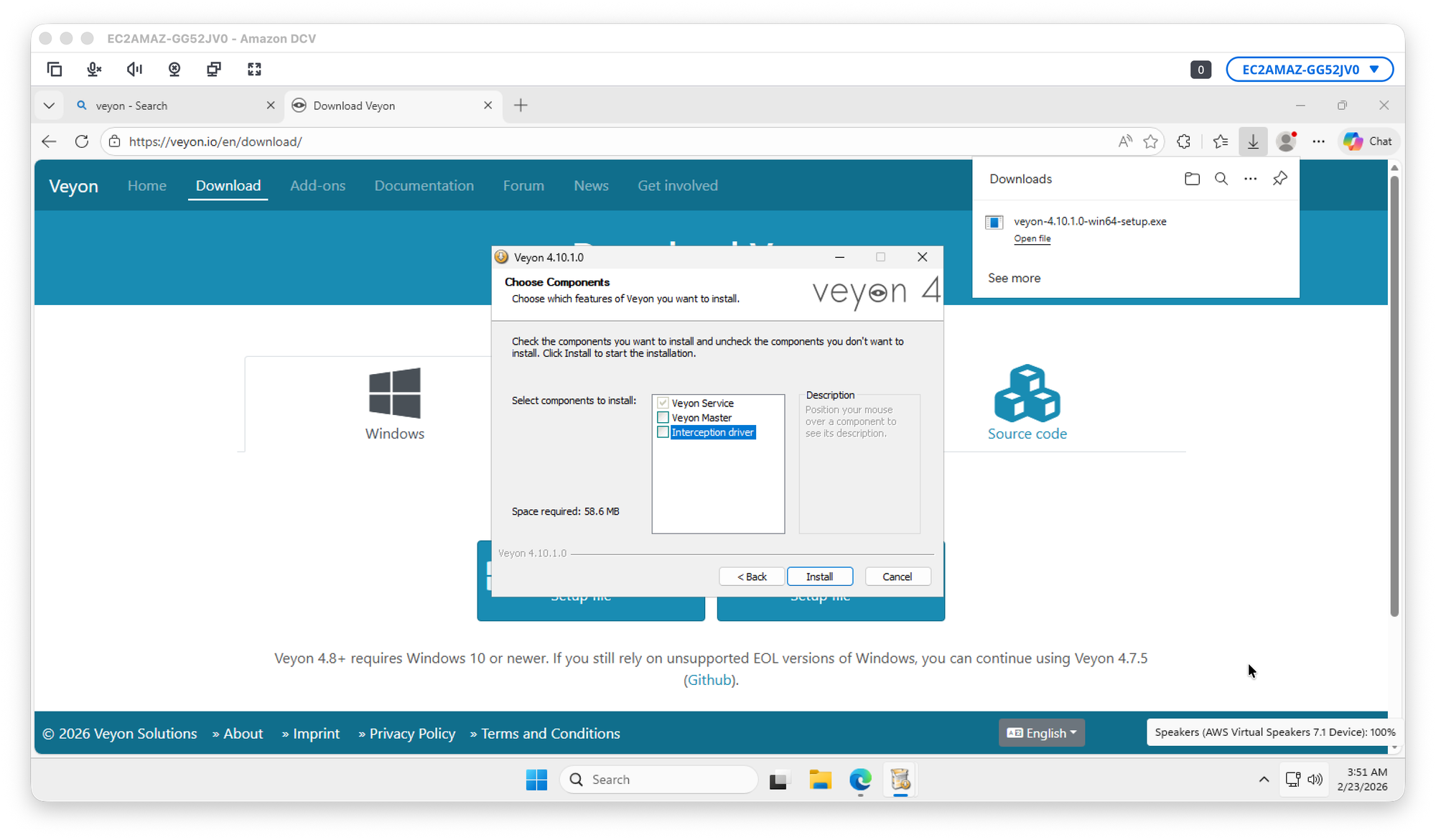
- Run the Veyon Configurator at the end of the installation
- On the Teacher machine, open the public key you exported earlier with Notepad and copy the contents
- Back on the Student machine, open notepad and paste the contents of the public key that you copied to your clipboard from the Teacher machine
- Save the file as a
.pemfile e.g.Classroom_public_key.pem - In the Veyon Configurator go to Authentication keys and click Import Key. Select the
.pemfile you saved - it should import successfully:
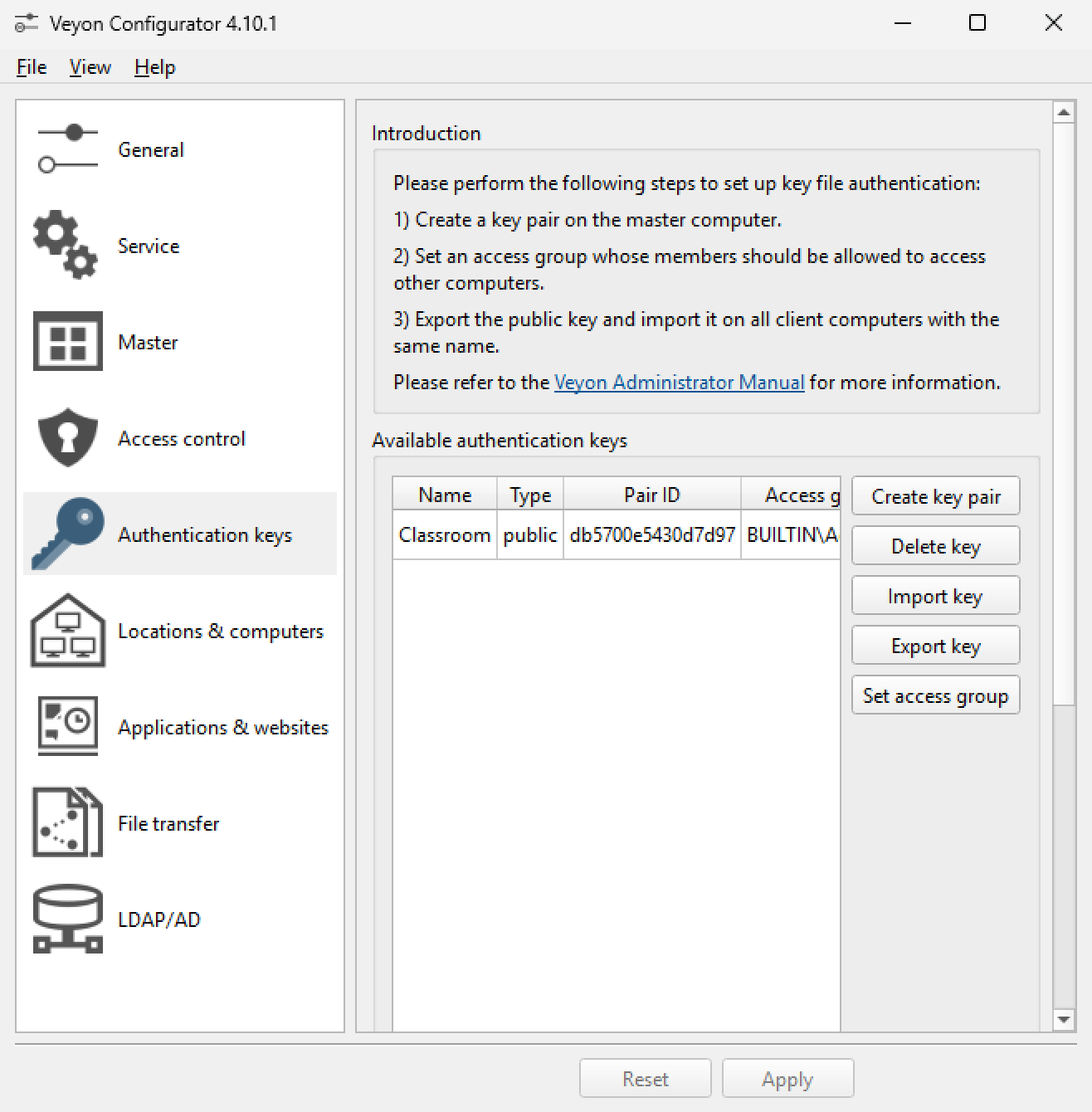
- In the Veyon Configurator, click on General and under "Authentication" make sure "Key File Authentication" is selected:
- Then, ensure "Network object directory" is set to "Builtin":
- Now click on Service and make sure the Session Mode is set to "Active Session Mode":
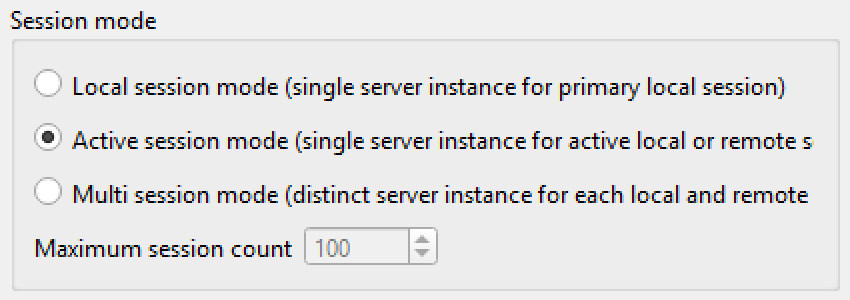
C:\VeyonDrop- Click Apply at the bottom of the window and allow Veyon to restart
Once you have tested the connection (see next section) you can then install any other software, files etc that your students need and then prepare the machine for packaging to disperse to other students by following the steps in this blog post:
 Parice Brandies
Once your student package is created, you can then use it as a template to launch as many student machines as required and you will be able to manage them all from your Teacher machine.
Using Veyon for Classroom Management
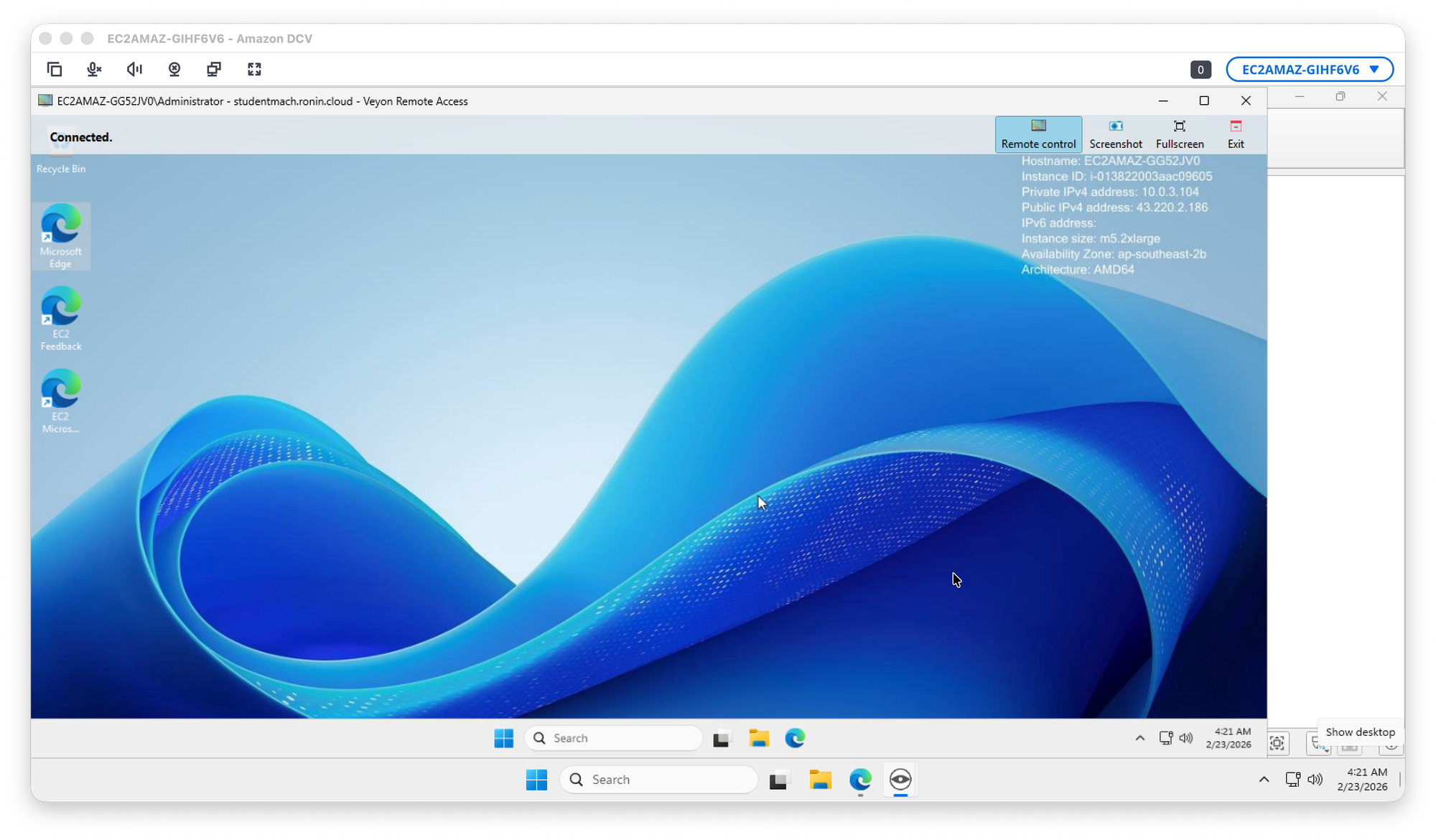
Testing your connection
- On the teacher machine, open Veyon Master
- Click on "Remote View"
- Enter the RONIN machine address for the student machine e.g.
student1.domain.cloud
You should be able to remotely view the students screen:
Creating your classroom list/s
- Open the Veyon Configurator and click on Locations and Computers - in this window you can create your own "Classroom lists" of student machines
- Make the Configurator full screen so that you can see all of the required columns properly
- Scroll to the bottom to add a new "Location" (e.g. a class or group of students)
- Then, with your new Location selected, scroll to the bottom again to add a student machine - the student's name can be placed in the Name column while the RONIN machine address e.g.
student1.domain.cloudneeds to be placed in the Host address/IP column.
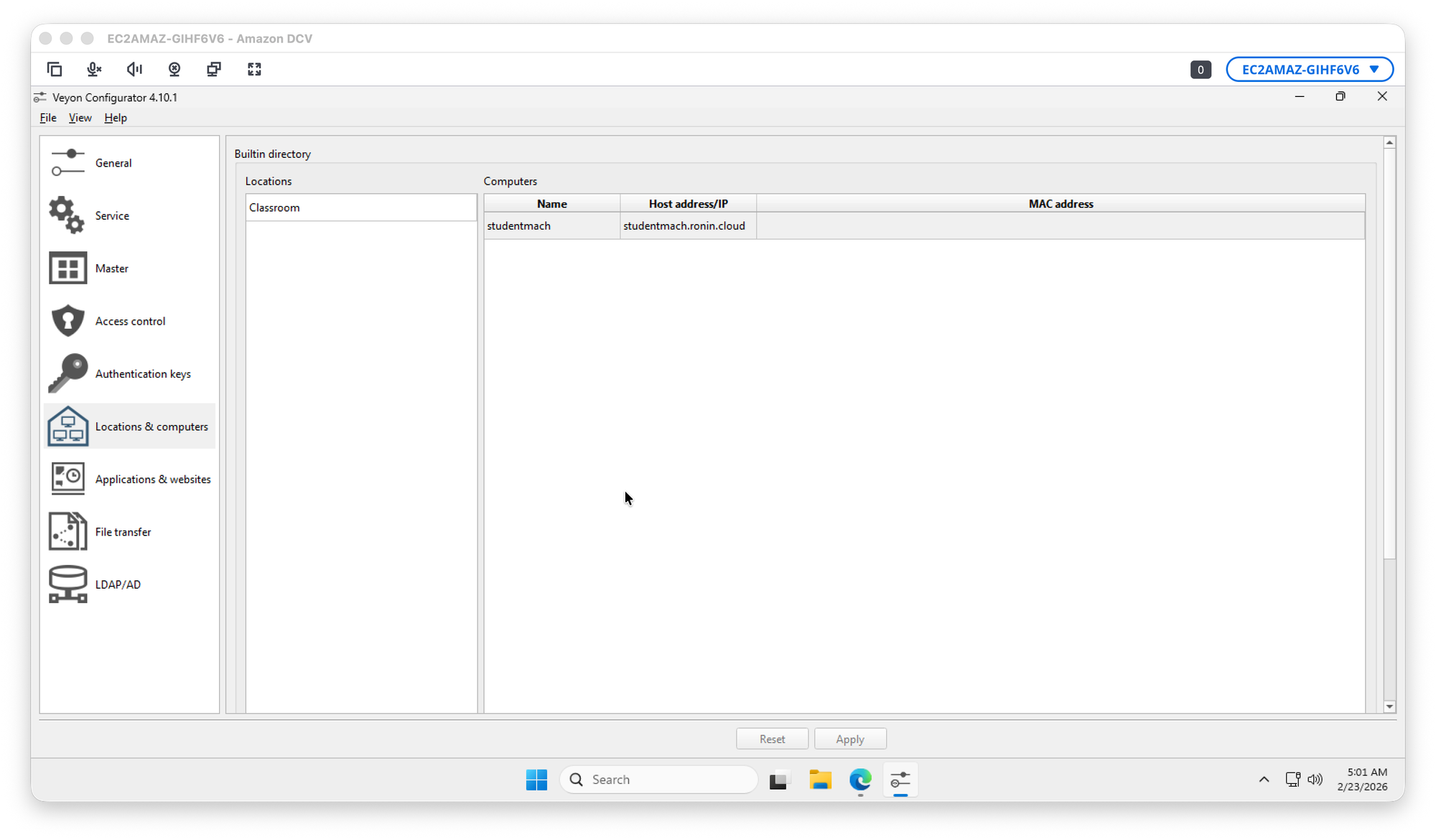
- Repeat this with as many student machines and classes as necessary
- Click Apply at the bottom and then allow Veyon to restart
Your list of Locations/Classrooms and respective student machines should then appear in the Veyon Master tool under "Locations & Computers" in the bottom left:
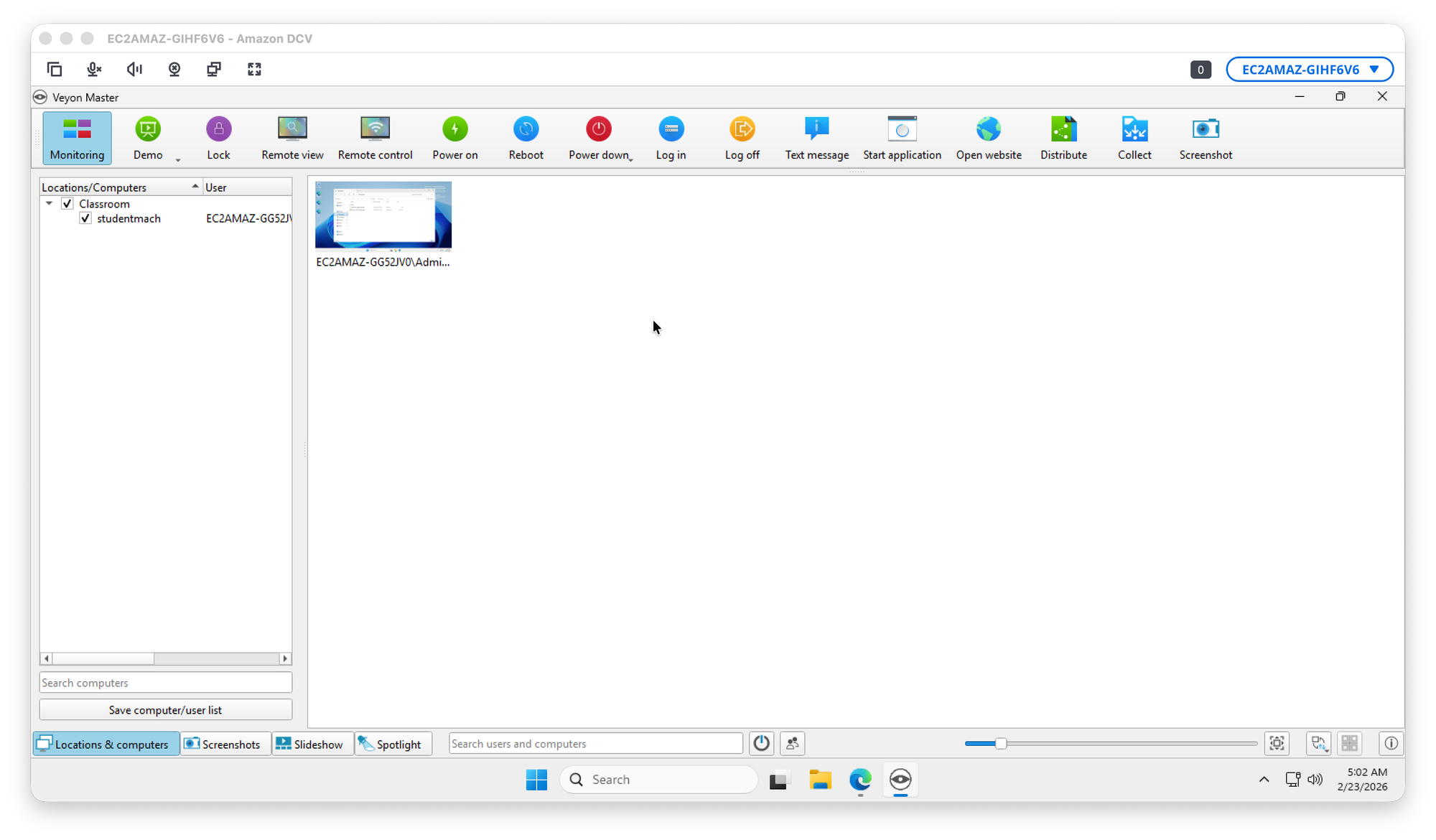
Veyon Tools
Veyon has a variety of other options for interacting with the student machines including:
- Monitoring Mode – Displays live thumbnail views of all student screens in near real time so teachers can monitor classroom activity at a glance.
- Full Screen View – Allows the teacher to open any student computer in full-screen mode for closer observation.
- Remote Control – Enables the teacher to control a student’s mouse and keyboard to provide direct assistance or guidance.
- Demo Mode (Screen Broadcast) – Broadcasts the teacher’s screen to selected or all student computers for live demonstrations.
- Lock Screen – Temporarily disables student keyboard and mouse input while optionally displaying a custom message.
- Send Message – Sends instant pop-up notifications or instructions to selected student machines.
- Screenshot Capture – Captures and stores screenshots of student screens for documentation or review.
- Power Management – Allows the teacher to log off, reboot, shut down, or wake student computers remotely.
- File Transfer (Optional) – Transfers files between the teacher and student machines when enabled.
- Search and Filtering Tools – Filters and organises student computers by name, user, or status to simplify classroom management.
Veyon is a powerful classroom management tool that is especially suited to cloud-hosted labs like those you can build with RONIN. It’s open source, cross-platform, and rich in features that help teachers maintain engagement and provide remote support. With a little upfront configuration you can create reproducible, scalable student environments fully manageable from a central teacher console.