
Launching GPU Instances on AWS: Understanding Capacity, Quotas, and Reservations
Launching GPU instances on AWS can fail due to Availability Zone constraints, vCPU quotas, or regional capacity limits. This guide explains what those errors mean and how IT teams can improve success with multi-AZ design, quota planning, and Capacity Reservations.

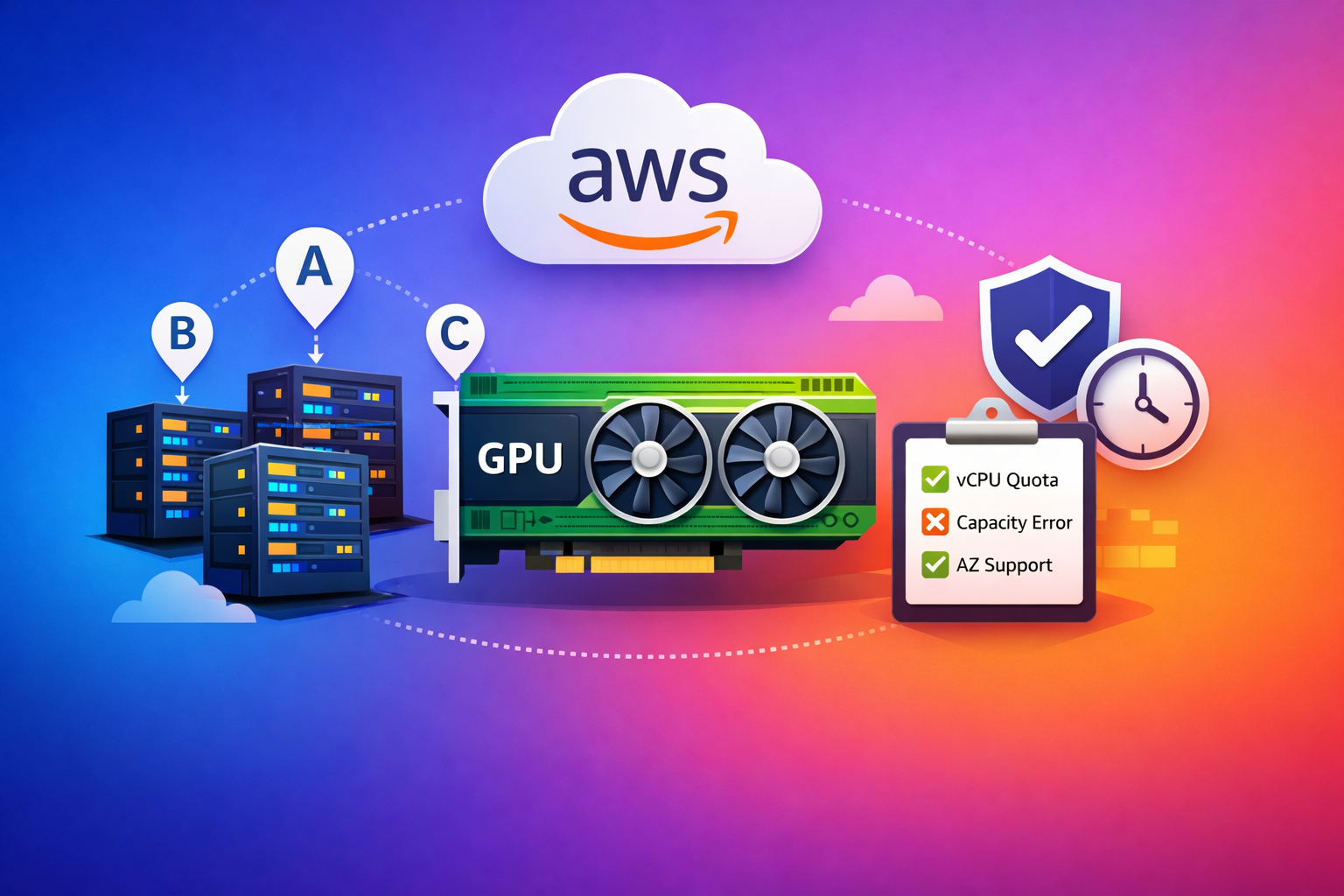
You used RONIN to build your dream GPU machine, maybe a g5, p4d, or p5. You hit Launch, but you receive an error that says:
“Insufficient capacity in the Availability Zone you requested.”
Or:
“You have requested more vCPU capacity than your current limit allows.”
When launching high-demand GPU instances for AI/ML workloads (or other specialised instances), these errors are common, and they’re almost always AWS capacity or quota constraints.
This post explains what those errors actually mean, why GPUs are uniquely tricky, and what RONIN admins can do to improve launch success.
The Three Most Common GPU Launch Failures
1.Insufficient Capacity (Temporary Shortage)
Example error:
“InsufficientInstanceCapacity: We currently do not have sufficient capacity in the Availability Zone you requested (us-east-1a). Please try another Availability Zone.”
What This Really Means:
AWS does not currently have available GPU hardware in that specific Availability Zone (AZ).
An Availability Zone (AZ) is a physically separate data centre (or group of data centres) within an AWS region.
For example, the region us-east-1 contains multiple AZs like:
- us-east-1a
- us-east-1b
- us-east-1c
Each AZ:
- Has independent power, networking, and cooling
- Contains its own pool of compute hardware
- Manages capacity separately
That last point is the important one for GPUs - capacity is managed per AZ, not per region. This means, there might be no availability in us-east-1a, but full availability in us-east-1b.
GPUs are:
- Expensive
- Limited in supply
- Heavily consumed by AI workloads
- Unevenly distributed across AZs
When AWS says there’s no capacity in us-east-1a, it doesn’t mean the entire region is full — it means that specific data centre’s GPU pool is exhausted.
Note that Supported ≠ Available. An AZ may support p4d, but that doesn’t mean GPUs are currently free in that AZ.
2.Instance Type Not Supported in That AZ (Structural Limitation)
Example error:
“The requested instance type (p5.48xlarge) is not supported in Availability Zone us-east-1c.”
What This Really Means:
- That AZ does not offer that GPU family.
- There is no hardware of that type deployed there.
- It will never succeed in that AZ.
This is not a capacity shortage. It’s a structural availability limitation.
The solution is to select a different AZ where the instance type is supported (see next section).
3.On-Demand vCPU Quota Exceeded
Example error:
“You have requested more vCPU capacity than your current On-Demand limit allows. Current limit: 64 vCPUs. Requested: 96 vCPUs.”
What This Really Means:
An EC2 quota (formerly called a limit) is an account-level control that caps how much compute capacity you can consume.
In AWS, on-demand machine (EC2) quotas are measured in vCPUs, not number of instances.
GPU instances consume a lot of vCPUs:
- g5.12xlarge → 48 vCPUs
- p4d.24xlarge → 96 vCPUs
- p5.48xlarge → 192+ vCPUs
Therefore, launching a single large GPU instance can exceed your entire default quota.
Quotas protect AWS infrastructure and help prevent accidental overconsumption, but for GPU-heavy AI workloads, default quotas are often too low and require adjustment.
If you hit your vCPU quota limit, you’ll need to request a quota increase - we’ve covered that process here: https://blog.ronin.cloud/how-to-request-an-ec2-quota-increase-on-aws-and-get-it-approved-faster/
Four Practical Ways to Improve GPU Launch Success
1.Spread Across Availability Zones
Capacity varies by AZ. Always.
Before you start randomly trying AZs, you can query AWS directly to see which Availability Zones offer a specific instance type in a region (replace your desired instance type and region accordingly):
aws ec2 describe-instance-type-offerings \
  --location-type availability-zone \
  --filters Name=instance-type,Values=p4d.24xlarge \
            Name=location,Values=us-east-1* \
  --region us-east-1 \
  --query "InstanceTypeOfferings[].Location" \
  --output text
This returns the AZs in that region that support the instance type (for example):
us-east-1a
us-east-1b
us-east-1d
A few important notes:
- This shows where the instance type is supported, not where capacity is currently available.
- Capacity can still be temporarily exhausted in one of those AZs.
- AZ letters (like us-east-1a) are account-specific aliases i.e. your
1amay not map to another account’s1a.
Our general recommendation is to deploy your RONIN projects across multiple AZs - this ensures you aren't putting all the demand on one AZ.
2.Consider Regional Flexibility
Some regions have better GPU supply than others.
If compliance and data residency allow, deploying a RONIN in another region can dramatically improve availability.
Trade-offs to evaluate:
- Data transfer costs
- Latency
- Regulatory requirements
- Dataset locations
For large AI training jobs, regional flexibility can be the difference between waiting hours and launching immediately.
3.Understand Capacity Reservations (Capacity Assurance)
An On-Demand Capacity Reservation:
- Reserves a specific instance type
- In a specific AZ
- For your account
If successfully created, a Capacity Reservation guarantees that specific instance capacity will remain available for your account in that Availability Zone for the duration of the reservation.
It does not provide a discount - it’s about availability, not savings.
They make sense when GPU launch reliability matters more than flexibility, for example:
- Universities running scheduled AI labs
- Researchers knowing that they require a specific instance for a specific timeframe (e.g. to train a model)
But over-reserving wastes money. You pay whether you use the capacity or not.
Note that if the AZ is already out of available GPU capacity when you try to create the reservation, the reservation itself will fail, just like a normal instance launch would.
4.Don’t Confuse Cost Tools With Capacity Tools
Reserved Instances and Savings Plans reduce cost.
They do not guarantee GPU availability.
Here’s the practical difference:
|
Feature |
Capacity Reservation |
Reserved Instance |
Savings Plan |
|---|---|---|---|
|
Guarantees Capacity? |
✅ Yes (AZ-specific) |
❌ No |
❌ No |
|
Provides Discount? |
❌ No |
✅ Yes |
✅ Yes |
|
AZ-Specific? |
✅ Yes |
Optional (Zonal RIs) |
❌ No |
|
Solves “Insufficient Capacity”? |
✅ Yes |
❌ No |
❌ No |
You can combine tools:
- Capacity Reservation → ensures availability
- Savings Plan → reduces cost
But they solve different problems.
Quick Checklist Before Escalating GPU Launch Errors
Before escalating a GPU launch issue to RONIN support, confirm:
- ✅ vCPU quota is sufficient for the instance family
- ✅ The instance type is available in the chosen AZ
- ✅ You’ve tried alternate AZs
- ✅ Capacity Reservations have been evaluated for predictable workloads
In most cases, one of these resolves the issue.
Final Thoughts
GPU launch failures are frustrating, but they’re rarely random.
They’re usually:
- AZ-level capacity constraints
- vCPU quota limits
- Regional supply shortages
- Or lack of capacity planning
With multi-AZ design, proper quota management, regional flexibility, and (when appropriate) Capacity Reservations, GPU deployments become far more predictable.
AI infrastructure isn’t “just another RONIN machine”, GPUs are scarce, high-demand resources.
Plan accordingly — and AWS is much more likely to say yes!